Access control policy remediation
Apply remediation to fix access control policy anomalies that were identified during policy analysis. This process helps optimize policy performance by addressing issues such as unused rules, shadowed rules, and overlapping objects.
Policy Analyzer and Optimizer stages remediation changes before it updates the policy. You can stage remediation for an entire anomaly category, selected observations, or individual rules within an expanded observation. Before you apply remediation, unselected observations and rules remain unchanged and available for later selection in the same analysis report.
Review staged changes before you select Apply Remediation. After you apply remediation, you cannot apply more changes from the same analysis report. To remediate remaining anomalies, run policy analysis again on the updated policy and use the new report.
Before you begin
-
Back up all policies before you apply remediation.
-
Ensure that at least one remediation is staged. If no remediation is staged, Apply Remediation is disabled.
-
Verify the Policy Last Modified and Policy Last Analyzed timestamps, and review the number of rules that are staged for remediation.
Procedure
Step 1 | In the Policy Analyzer and Optimizer page, select the policy to see details about the analysis on the right pane and click View analysis details & optimize. | ||
Step 2 | Click the remediation tab that contains the anomalies that you want to fix. | ||
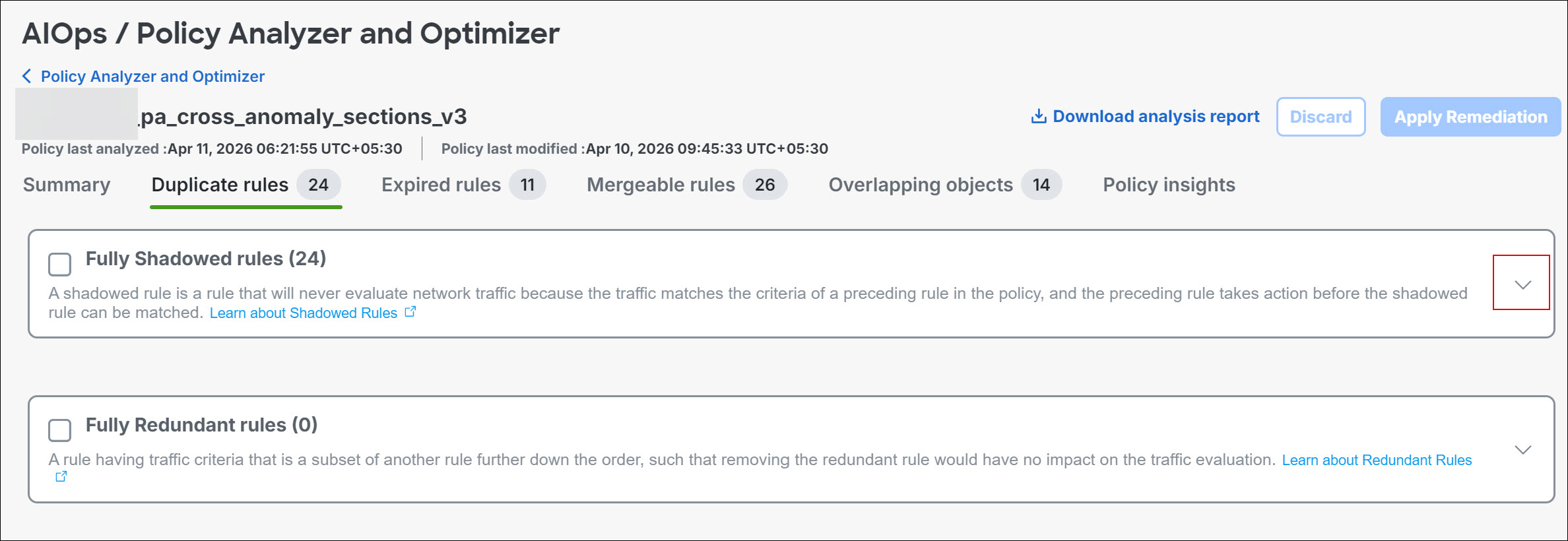
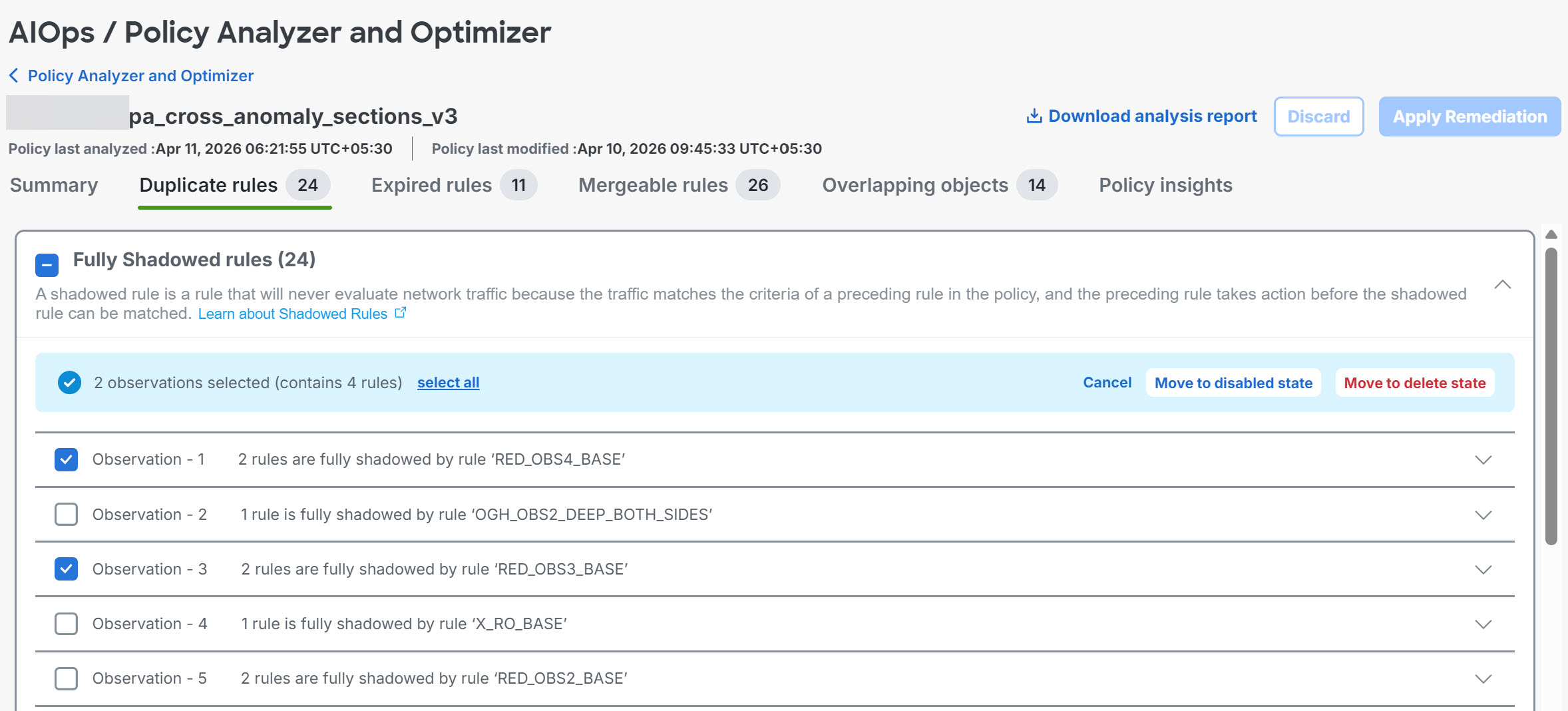
Step 3 | Expand a remediation category. Select the check box for the category to stage all observations, or select the check boxes for specific observations or rules to stage only those items. Repeat this step in other remediation tabs, as needed.
| ||
Step 4 | Select the remediation action that applies to the staged items, such as Move to disabled state, Move to delete state, Merge Selected, Remove All Fully Overlapped Objects from Rules, Disable Rules, or Delete Rules.
| ||
Step 5 | Review the staged remediation. If you need to change the staged remediation before applying it, use the available undo or discard action. | ||
Step 6 | Click Apply Remediation. | ||
Step 7 | Read the confirmation message, which summarizes the remediations that will be applied. Confirm that the selected policy and staged remediation are correct. | ||
Step 8 | Click Apply.
|
After remediation is complete, the selected rules are updated. Policy Analyzer and Optimizer automatically analyzes the updated policy and generates a refreshed summary that shows any remaining issues. Verify the intended changes in the corresponding access control policy.