Add, edit, or delete dynamic attributes filters
The dashboard enables you to add, edit, or delete dynamic attributes filters. You can click the name of a filter to view all instances of that filter or you can click  for additional options.
You can click the name of a filter to view all instances of that filter or you can click for the following additional options:
-
Go to Dynamic Attributes Filters to view all configured dynamic attributes filters. You can add, edit, or delete dynamic attributes filters from there.
-
Add Dynamic Attributes Filters to add a filter.
For more information about adding dynamic attributes filters, see Create dynamic attributes filters.
Click any adapter in the filters column ( ) to display more information about it; an example follows:
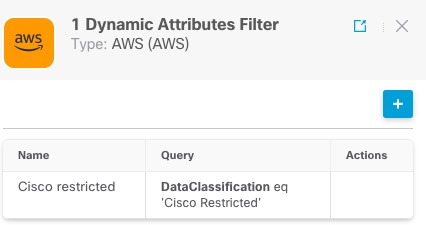
Note | Some connectors, such as Outlook 365 and Azure Service tags, automatically pull available dynamic objects without the need for a dynamic attributes filters. Those connectors display Auto in the |
You have these options:
-
Click a filter instance to view summary information about dynamic attributes filters associated with a connector.
-
Click the Add icon (
 ) to add a new dynamic attributes filter.
For more information, see Create dynamic attributes filters.
-
Click
 in the filters column () indicates the indicated connector has no associated dynamic attributes filters. Without associated filters, the connector can send nothing to
Cloud-Delivered Firewall
Management Center.
in the filters column () indicates the indicated connector has no associated dynamic attributes filters. Without associated filters, the connector can send nothing to
Cloud-Delivered Firewall
Management Center.One way to resolve the issue is to click
in the filters column and click Add Dynamic Attributes Filter. A sample follows.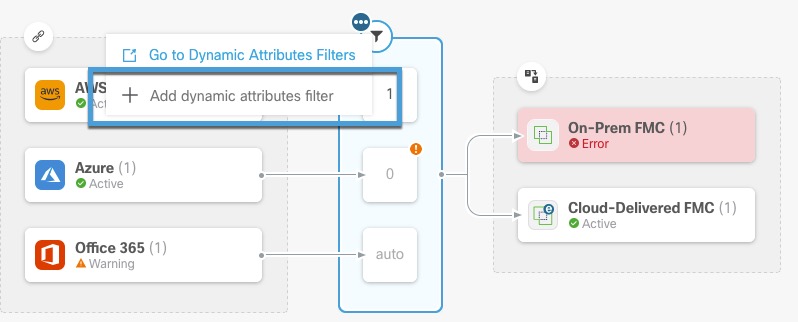
-
Click
 to add, edit, or delete filters.
 -
Click
 to close the panel.