Generate a .CSV.GZ File
Procedure
| Step 1 | On the CDO menu bar, navigate . | ||
| Step 2 | Click the Historical tab if that view is not already visible. | ||
| Step 3 | Use the event filter and search field to find the events you want to download. The events that match the results from that filtering and searching, and that occur within the time range you specify, will be included in the .csv.gz file. | ||
| Step 4 | Click the Generate .CSV button: 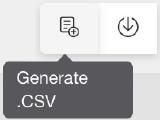 | ||
| Step 5 | Select a time range between which CDO finds the events. | ||
| Step 6 | Enter a meaningful file name. | ||
| Step 7 | Click Generate .CSV. You can find the file you just generated by clicking the Downloaded Generated Files button.
|