Enable or Disable ASA Health Monitoring in the MSSP Portal
To monitor your Secure Firewall ASA devices in the MSSP portal using the Health overview dashboard, you must enable the feature at the MSSP portal level by following the procedure below. Then for each tenant with Secure Firewall ASA devices you want to monitor, you must first enable the feature at the tenant level, and at the individual device level in the Security Cloud Control platform for Secure Device Connector-managed ASA devices you want to monitor. For more information, see Enable ASA health monitoring.
Note | Cloud Device Gateway (CDG) ASA devices are automatically enabled when you enable ASA health monitoring at the tenant level. |
Bulk opt-in and opt-out options are also available for Device Health Metrics in ASA devices managed by Secure Device Connector (SDC), from the Security Devices page of the Security Cloud Control platform. For more information, see Bulk opt in or opt out of device health metrics.
To enable ASA Health Monitoring, you must enable the feature at the tenant level for Secure Firewall ASA devices and at the individual device level for Secure Device Connector-managed ASA devices in addition to enabling the ASA Health Monitoring feature at the MSSP portal level. Note that you can enable the toggle buttons in any order. This configuration ensures that health monitoring data is collected and available for analysis in the MSSP health dashboard.
Note | To enable or disable the ASA Health Monitoring feature at the MSSP portal level, you must have Super Admin user privileges. |
Procedure
Step 1 | From the left pane, navigate to . |
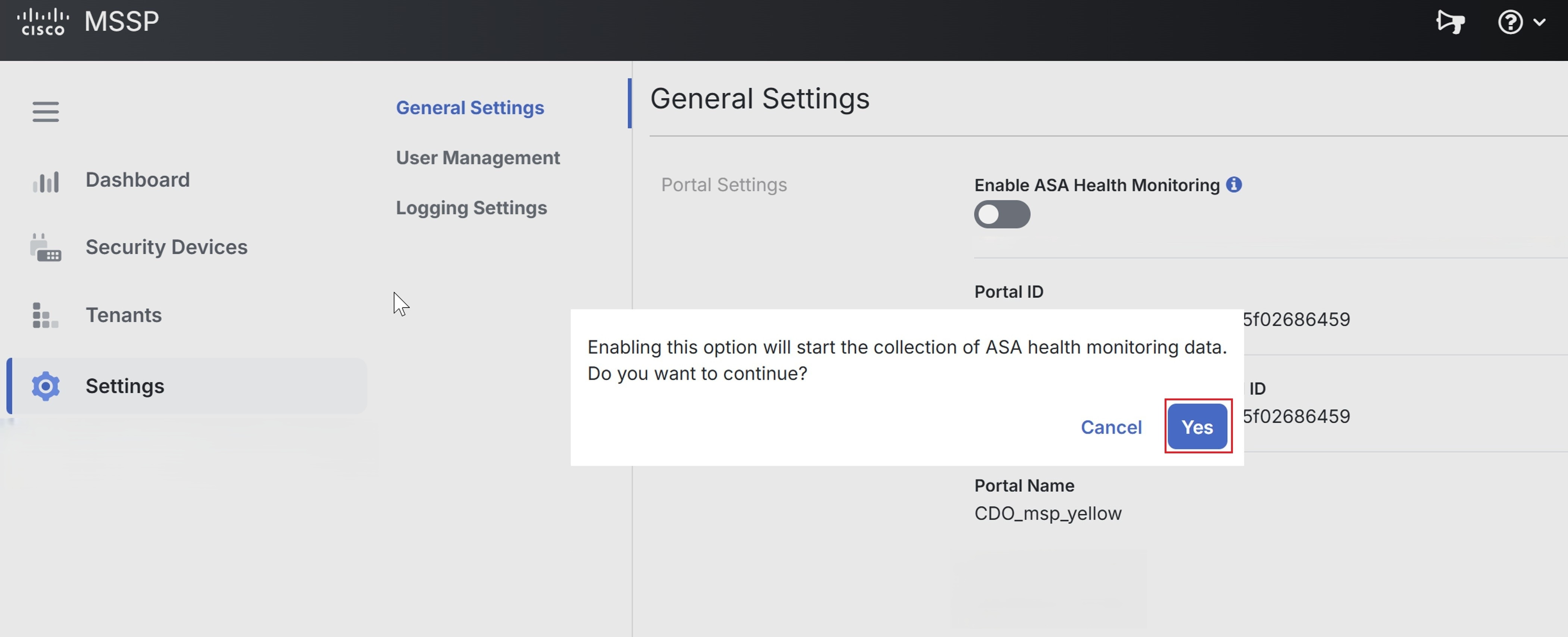
Step 2 | In the Portal Settings section, click the Enable ASA Health Monitoring toggle button to enable it. |
Step 3 | Click Yes in the dialog box that is displayed to turn on the ASA Health Monitoring feature for your tenants.
|
Step 4 | (Optional) To disable this feature, click the Enable ASA Health Monitoring toggle button and click Yes in the confirmation dialog box.
|