Perform a global search
Use global search to quickly locate and navigate to specific devices, objects, policies, and Cloud-Delivered Firewall Management Center items across your environment.
Procedure
Step 1 | Log into Security Cloud Control. | ||
Step 2 | Click the search icon in the Security Cloud Control page and enter the search strings in the search field that appears. Alternatively, you can press and hold the Ctrl key and the / key simultaneously on Windows, or the Command key and / key on Mac, to open the search bar. 
The search results display a list of possible items as you begin entering the search strings. The search results appear under four categories: All, Devices, Objects, Policies, and Cloud-Delivered Firewall Management Center. The right pane displays information for a selected search result. 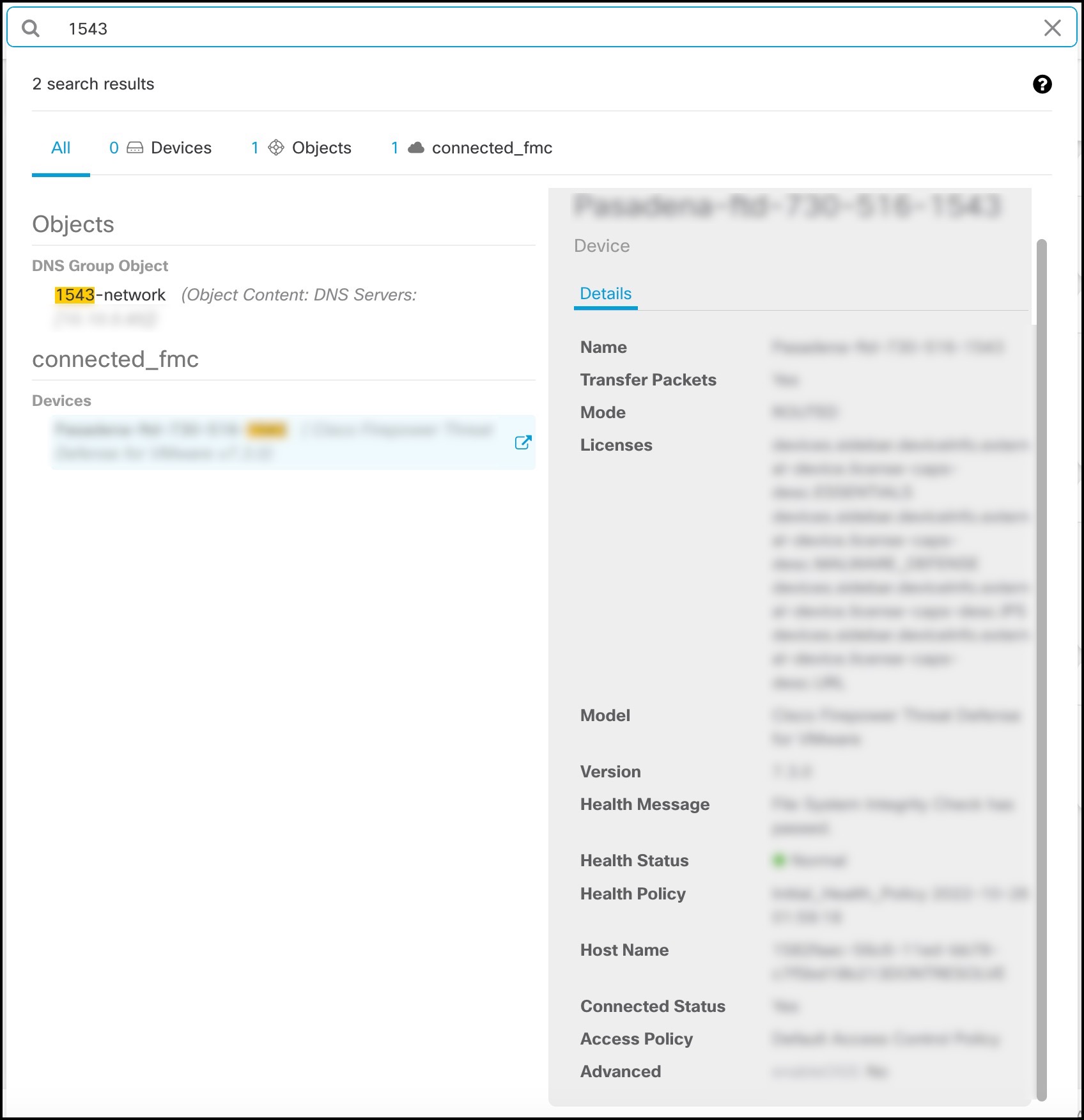
| ||
Step 3 | From the search result, select a device or an object, and click the arrow icon to navigate from the search results to the corresponding device and object page. From the search result, select an item, and click the arrow icon to navigate from the search results to the corresponding page.
| ||
Step 4 | Click X to close the search bar. |
You have successfully performed a global search and navigated to the desired device, object, or policy page. The search bar is now closed.