Onboard an On-Premises Firewall Management Center to Security Cloud Control with Credentials
This task enables centralized management of your On-Premises Firewall Management Center through Security Cloud Control by establishing secure connectivity and authentication.
To onboard an On-Premises Firewall Management Center to Security Cloud Control with credentials, follow this procedure:
Before you begin
These prerequisites must be met:
-
For Cloud Secure Device Connector (SDC): Allow inbound traffic on port 443 of the On-Premises Firewall Management Center.
The SDC reaches the On-Premises Firewall Management Center by allowing inbound traffic on port 443.

Both the Security Cloud Control and the SDC are hosted in the cloud.
-
For On-Premises Secure Device Connector (SDC): Allow outbound connectivity on port 443 of the SDC.
The SDC requires connectivity to the Security Cloud Control, making it imperative to permit outbound traffic from the SDC to the Security Cloud Control. No additional port configuration is required on on-premises Firewall Management Center.

Procedure
Step 1 | Choose . | ||
Step 2 | Click | ||
Step 3 | Click Firewall Management Center. | ||
Step 4 | Select the Use Credentials card. | ||
Step 5 | Click the Secure Device Connector button and select an SDC installed in your network. If you would rather not use an SDC, Security Cloud Control can connect to your On-Premises Firewall Management Center using the Cloud Connector. Your choice depends on how you connect Security Cloud Control to your managed devices. 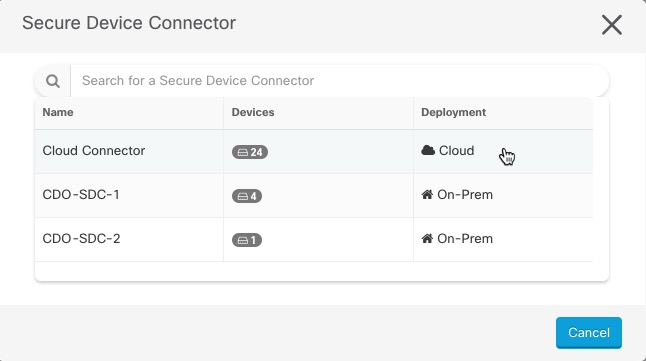 | ||
Step 6 | Enter the device name and location and click Next. | ||
Step 7 | Enter the Username and Password of the account credentials you want to use to access the On-Premises Firewall Management Center. Click Next. | ||
Step 8 | After you onboard the device, you can add labels to your On-Premises Firewall Management Center, or you can click Go to Services to view the page of onboarded devices. If the device is healthy, the FMC displays a Synced status.
|
 to onboard an
 The On-Premises Firewall Management Center is successfully onboarded to Security Cloud Control and can be managed centrally with a Synced status indicating successful connectivity.