If the certificate authority chain is not fetched automatically, use one of these browser-specific procedures to get a certificate chain to securely connect to vCenter
or, orFirewall Management
Center
.
The
certificate chain
is the root certificate and all subordinate certificates.
Procedure
Command or Action
Purpose
Step 1
Get a Certificate Chain—Mac (Chrome and Firefox)
Open a Terminal window.
Enter this command:
          security verify-cert -P
          url[:port]
where url is the URL (including scheme) to vCenter
or, orFirewall Management
Center
. For example:
Save the entire certificate chain to a plaintext file.
Include
all
-----BEGIN CERTIFICATE-----
and
-----END CERTIFICATE-----
delimiters.
Exclude
any extraneous text (for example, the name of the certificate and any text contained in angle brackets (
<
and
>
) as well as the angle brackets themselves.
Repeat these tasks for vCenter
, orFirewall Management
Center
.
Step 2
Get a Certificate Chain—Windows Chrome
Log in to vCenter
or, orFirewall Management
Center
using Chrome.
In the browser address bar, click the lock to the left of the host name.
Click Certificate.
Click the
Certification Path
tab.
Click the top (that is, first) certificate in the chain.
Click View Certificate.
Click the Details tab.
Click Copy to File.
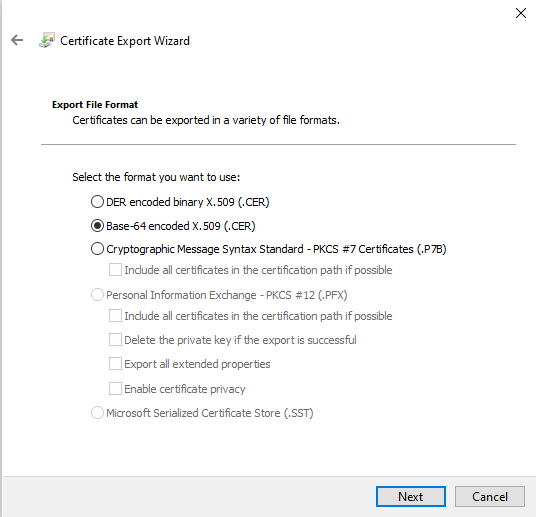
Follow the prompts to create a CER-formatted certificate file that includes the entire certificate chain.
When you're prompted to choose an export file format, click Base 64-Encoded X.509 (.CER).
Follow the prompts to complete the export.
Open the certificate in a text editor.
Repeat the process for all certificates in the chain.
You must paste each certificate in the text editor in order, first to last.
Repeat these tasks for vCenter
or, orFirewall Management
Center
.
Step 3
Get a Certificate Chain—Windows Firefox
Log in to vCenter
or, orFirewall Management
Center
using Firefox.
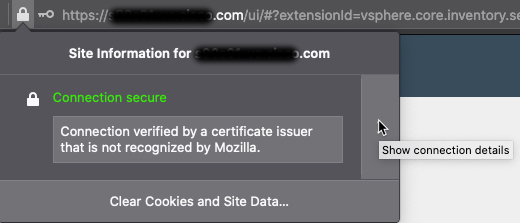
Click the lock to the left of the host name.
Click the right arrow (Show connection details).
Click More Information.
Click View Certificate.
If the resulting dialog box has tab pages, click the tab page corresponding to the top-level CA.
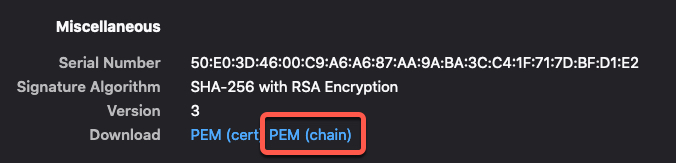
Scroll to the Miscellaneous section.
Click
PEM (chain)
in the Download row.
Save the file.
Repeat these tasks for vCenter
or, orFirewall Management
Center
.