Update the Hostname or IP Address in the Firewall Management Center
If you edit the hostname or IP address of a device after you added it to the Firewall Management Center (using the device’s CLI, for example), you need to use the procedure below to manually update the hostname or IP address on the managing Firewall Management Center.
If you used only the NAT ID when registering the device, then the IP shows as NO-IP on this page, and you do not need to update the IP address/hostname.
Procedure
Step 1 | Choose . |
Step 2 | Next to the device where you want to modify management options, click Edit ( |
Step 3 | Click Device, and view the Management area. |
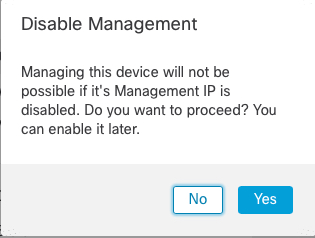
Step 4 | Disable management temporarily by clicking the slider so it is disabled Slider disabled (  You are prompted to proceed with disabling management; click Yes.
Disabling management blocks the connection between the Firewall Management Center and the device, but does not delete the device from the Firewall Management Center. |
Step 5 | Edit the Host IP address or hostname by clicking Edit (  |
Step 6 | In the Management dialog box, modify the name or IP address in the Host field, and click Save. 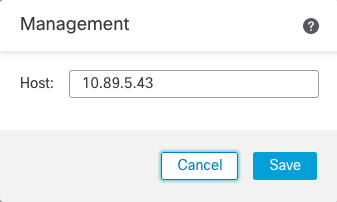
|
Step 7 | Reenable management by clicking the slider so it is enabled Slider enabled ( 
|