Create An SSL policy with a Decrypt-Resign rule
This part of the procedure discusses how to create an SSL policy to decrypt and resign traffic before the traffic reaches the captive portal. The captive portal can authenticate traffic only after it has been decrypted.
Before you begin
For an overview of the entire captive portal configuration, see How to configure the captive portal for user control.
Procedure
Step 1 | If you haven't done so already, log in to the Firewall Management Center. |
Step 2 | If you haven't done so already, create a certificate object to decrypt TLS/SSL traffic as discussed in PKI. |
Step 3 | Click . |
Step 4 | Click New Policy. |
Step 5 | Enter a Name and choose a Default Action for the policy. Default actions are discussed in SSL Policy default actions. |
Step 6 | Click Save. |
Step 7 | Click Add Rule. |
Step 8 | Enter a Name for the rule. |
Step 9 | From the Action list, choose Decrypt - Resign. |
Step 10 | From the with list, choose your PKI object. |
Step 11 | Click Users. |
Step 12 | Above the Available Realms list, click Refresh ( |
Step 13 | In the Available Realms list, click Special Identities. |
Step 14 | In the Available Users list, click Unknown. |
Step 15 | Click Add to Rule. The following figure shows an example. 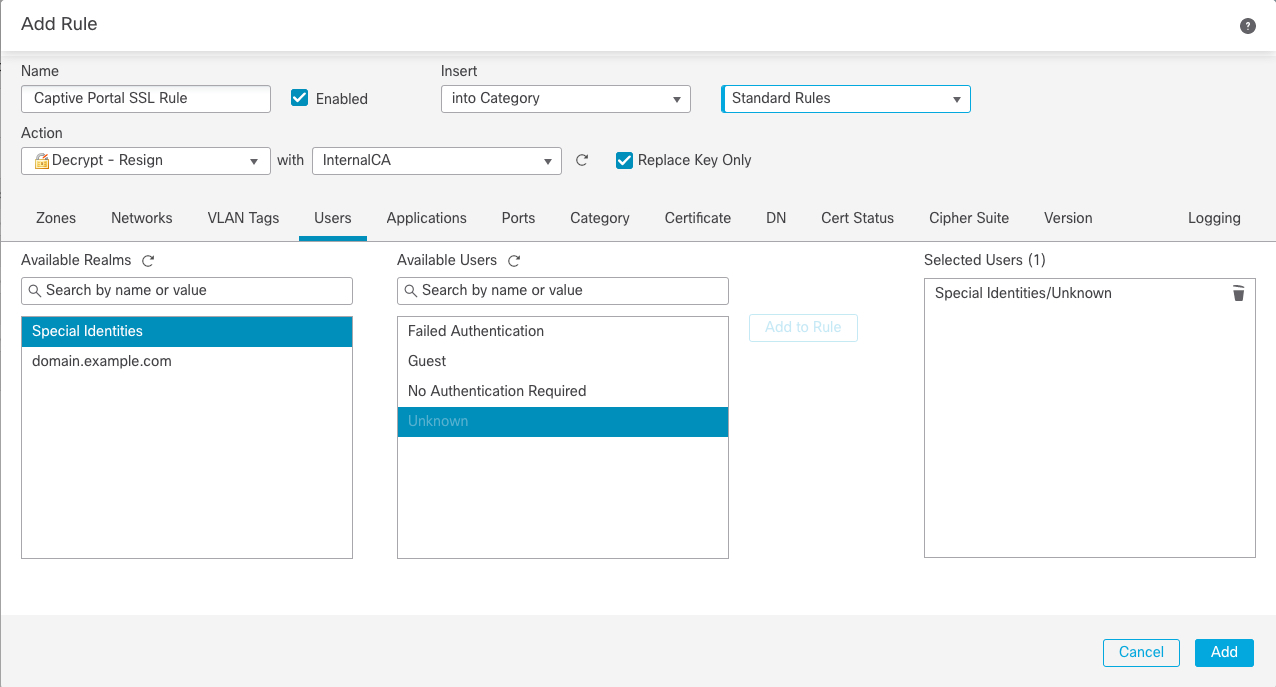 |
Step 16 | (Optional.) Set other options as discussed in TLS/SSL RuleDecryption Rule conditions. |
Step 17 | Click Add. |
Step 18 | At the top of the page, click Save. |

What to do next
Associate the identity and SSL policies with the access control policy from step 2.
This final step enables the system to authenticate users with the captive portal.
For more information, see Associate Identity and SSL policies with the access control policy.